Sencia Email Setup
for an iPhone
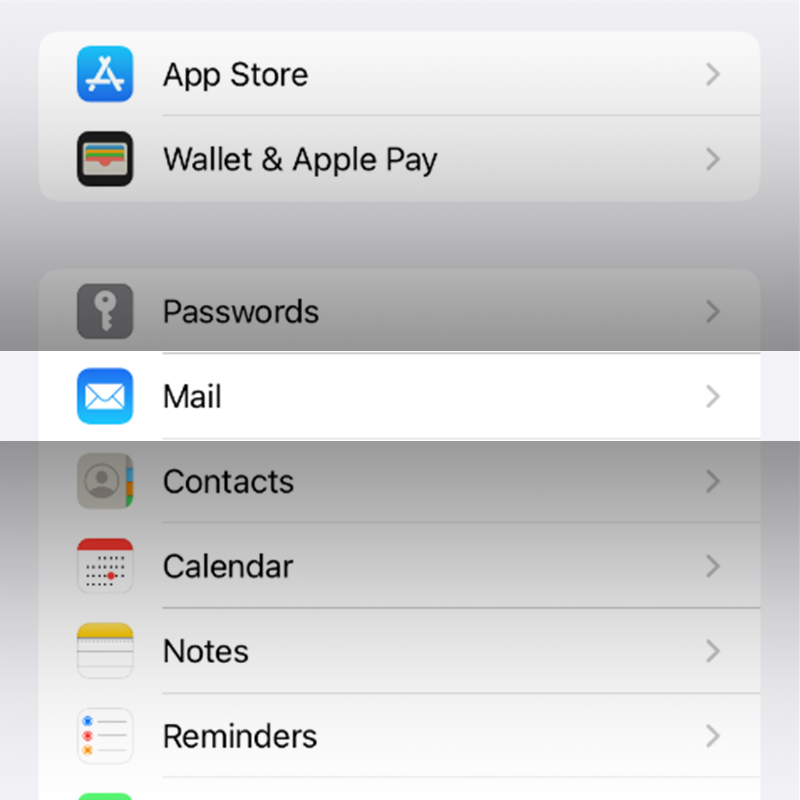
- First, you will have to navigate to your settings app and find the mail settings
- Within these settings there should be an option for Accounts. If you select this option it will take you to a new screen with the option to add an account.
- Once you start to add the account you will have to choose what type of account it is whether it be google or yahoo or outlook, however our accounts need to be set up as Other.
- When you select other you will then have to choose the option to Add Mail Account.
- Finally, this will take you to the screen where you will have to start entering information.
- The username for your account will always be the email itself and the password will stay the same as the password to get into the email account. The name and description of the account are up to you!
- For the Incoming and Outgoing Host name it will be set to securemail.sencia.ca
- We always recommend that the account gets set up with IMAP, however if you are interested in POP and would like more information let us know and we can always work to get that setup for you as well.
- Done! Your email is successfully set up.
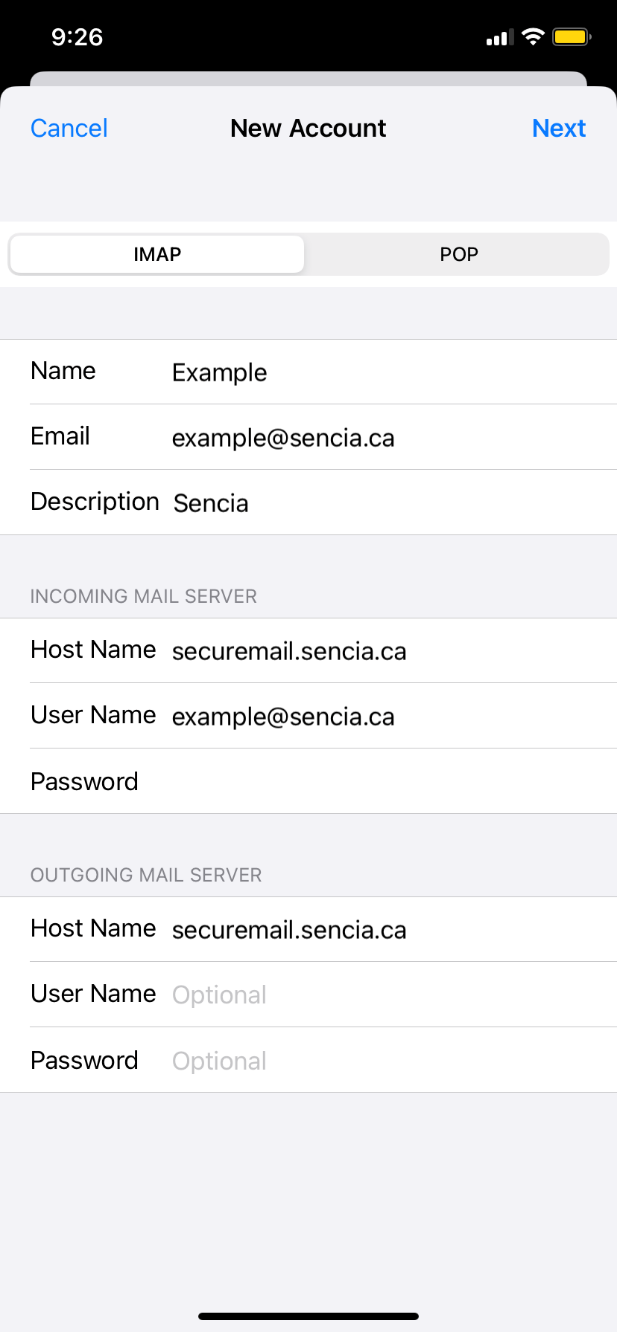
Account Settings:
Host Name: securemail.sencia.ca
Incoming Port: 993
Outgoing Port: 465
Encryption Type: SSL/TLS
If you have questions about any of these steps or would like some help in going through them please reach out and let us know as we would be happy to assist.
Phone Support: 807.768.6603
Email Support: support@sencia.ca