Managing Your SmartMail Storage
If you have any questions or need help with archiving or cleanup, feel free to reach out to support.
While managing storage in SmartMail, keep these tips in mind:
- Empty Deleted Items: Emails in your trash still count toward your storage until permanently removed
- Check Sent Mail: Large attachments often accumulate here
- Review Junk/Spam folders: These can quietly take up space
- Look for forgotten folders: Old custom folders may contain large amounts of mail
Steps to clean up your inbox:
#1. Check Your Storage Usage
If you're unsure how much storage you're using, or where it's being used, you can check this in SmartMail webmail:
- Go to smartmail.sencia.ca
- Log in using your email address and password
- Open the dropdown menu under More and select Reports
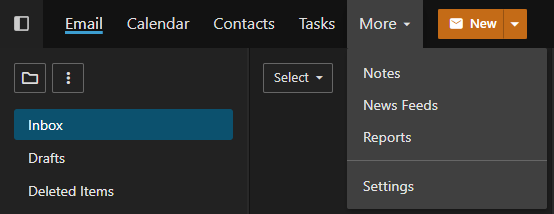
In the Reports section, you'll see a Disk Usage chart showing:
- Total storage used
- Available space
- Which folders are using the most storage
#2. Removing Large Emails
Once you know which folders are using the most space, you can sort emails by size to remove large messages first.
In SmartMail Webmail:
- Open the folder you want to clean up
- Click the Sort button next to the magnifying glass
- Sort largest to smallest
- Delete or move large emails as needed
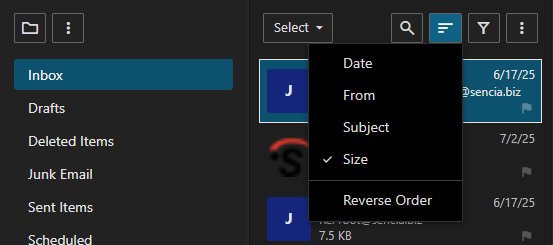
This is one of the fastest ways to free up space.
#3. Save Emails Elsewhere (Instead of Deleting)
If you don't want to delete important emails, you can store them outside your mailbox:
- Download emails individually
- Forward them to another account
- Export them to an Outlook Data File (.pst)
#4. Using Outlook to Archive Emails
Create an Outlook Data File (.pst)
- Go to File (top-left in Outlook)
- Select Open & Export
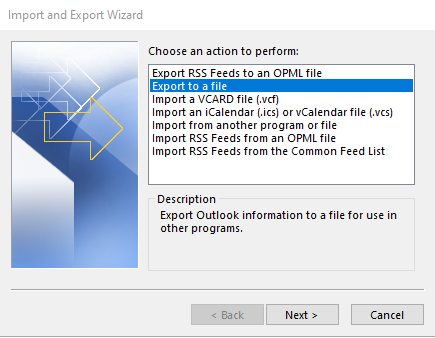
- Click Import/Export
- Choose Export to a file
- Select Outlook Data File (.pst)
- Choose the folder to export (optionally include subfolders)
- Select a save location and name the file
Open an Outlook Data File
- Go to File → Open & Export
- Click Open Outlook Data File
- Browse to your saved .pst file
- Select it and click Open
If you don't see the file in Outlook:
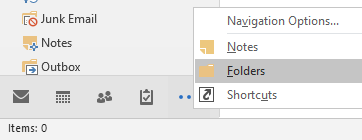
- Expand your folder view (sometimes under the “…” menu)
- Make sure you are viewing all folders, not just your inbox
#5. Confirm Storage Has Been Reduced
After deleting or moving emails:
- Return to Reports in SmartMail
- Confirm your storage usage has decreased
- Ensure:
- Deleted Items is empty
- No large folders were missed
Mailbox Expansion Option
If you regularly run out of space, you can increase your mailbox size.
- Cost: $85 per GB per year (per mailbox)
- Contact: support@sencia.ca